Add a single offline contribution
- From the contributions screen, select the blue +Add Contribution button.
- You will be required to enter the contribution details in the new contribution screen that appears.
2.A) The following fields are required;
Contact
Payment method
Total amount
Date received
Fund
Most fields will feature a drop-down menu from which an item can be picked, with a few exceptions;
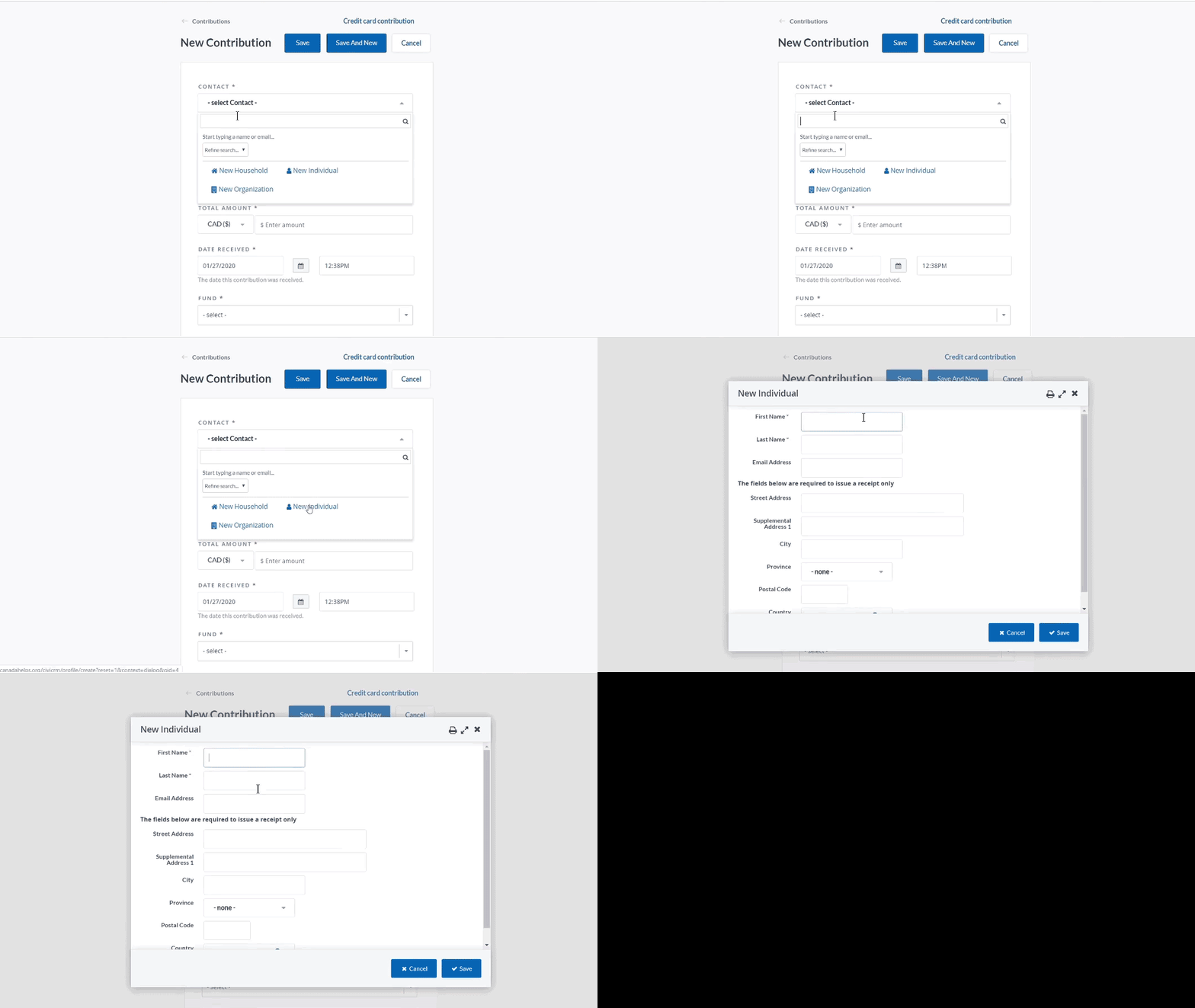
2.B) Existing contacts can be found by typing the name or email.

2.C) New contacts can be created by clicking the appropriate contact type
2.D) Only the first name and last name are required fields, although a full address is required if a receipt is to be issued. The postal address can be added at a later time, from the contact’s detail page.
2.E) The date received fields will default to the current date and time.
3. Once all the contribution details are in, scroll down to the bottom of the page to save. There are two options to save and one to cancel :
3.A) Save – Which will save the contribution and redirect to the donor’s contribution details page
3.B) Save and new – Which will save the contribution and redirect to a blank new contribution page.
3.C) Cancel – You may also opt to Cancel the entry, which will redirect back to the contributions screen.